

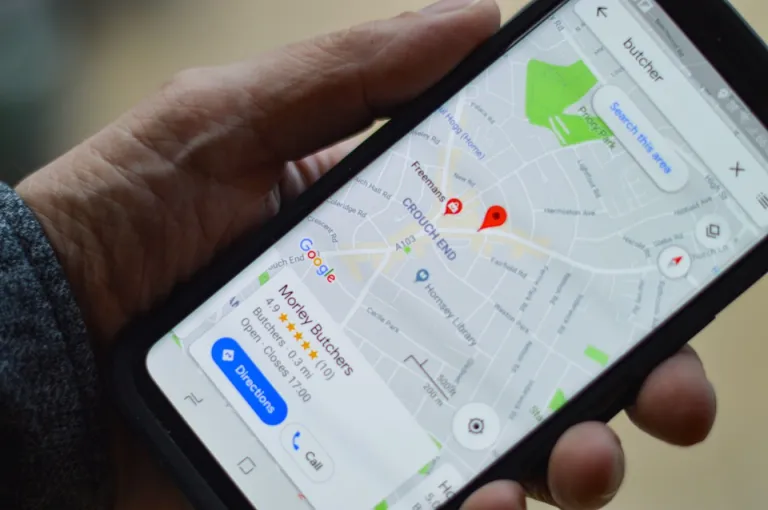
Key Takeaways: Google Maps Voice Navigation Not Working
Device settings, network connectivity, app updates, voice navigation volume settings, and Google Maps bugs are common causes of Google Maps voice navigation not working.
- To fix the issue, verify device settings such as volume, language, and permissions, check network connectivity, and update the Google Maps app.
- Adjust voice navigation volume settings and ensure sound is not going through headphones instead of the phone’s speaker.
- Clear the cache and data of the Google Maps app or reinstall it to fix bugs.
- If the problem persists, contact Google support for further assistance.
Google Maps is a very important tool for many people all over the world. It helps drivers, cyclists, and pedestrians find their way with accurate directions. However, it can be frustrating when the voice navigation stops working and you don’t hear any instructions.

In this article, we will talk about why Google Maps voice navigation might not work and give you step-by-step solutions to fix the problem. We want to help you get back to navigating easily and without any trouble.
Whether you’re going on a trip or just trying to find your way in town, we have the answers for you. Let’s start fixing your Google Maps voice navigation so you can use it again in no time!
Common Causes of Google Maps Voice Navigation Not Working
Here are some common causes:
- Device settings: Sometimes, the problem might be because of how your device is set up. This includes things like the volume settings, the language, and gender of the voice, or the permissions the device has.
- Network connectivity: Google Maps needs the internet to give you real-time updates on traffic and directions. If your internet connection is weak, the voice navigation may stop working or be delayed.
- App updates: Google Maps is always improving to give you the best experience. However, sometimes these updates can cause problems with the app, including issues with the voice navigation.
- Voice navigation volume settings: It’s possible that the sound on your device is turned down or muted, so you can’t hear the voice navigation.
- Google Maps bugs: Like any other software, Google Maps can have problems or glitches that affect how the app works. Sometimes, the voice navigation might stop working because of a bug in the app.
How to Fix Google Maps Voice Navigation Not Working?
Here are some effective methods to help you resolve the problem of Google Maps Voice Navigation not working on your Android and iOS phone.
Solution 1: Verify device settings
- Check volume settings: Make sure the volume on your device is turned up and not muted. Additionally, ensure that you properly adjust the media volume, as it may be separate from the overall device volume.
- Verify voice language and gender settings: It’s possible that the voice navigation language or gender settings have been altered or disabled. You can check this by accessing the Google Maps app settings, selecting “Navigation settings,” and ensuring that the desired language and gender are chosen.
- Confirm device permissions: Google Maps requires access to your device’s microphone to enable voice navigation. Navigate to your device’s settings, choose “Apps & notifications,” locate “Google Maps,” and enable the microphone permission to ensure the app can use it.
By examining these device settings, you can ensure that there are no issues with the device that could be causing the voice navigation feature of Google Maps to malfunction.
Solution 2: Check network connectivity
Make sure your Wi-Fi connection is strong and stable. Try disconnecting and reconnecting to see if that fixes the problem. If you’re using mobile data, check that you have a good signal and an active data plan.
The strength of the GPS signal can affect how accurate and reliable Google Maps is for navigation. Turn on your device’s location services and enable GPS. If you’re indoors or in an area with a weak GPS signal, try moving to a place with a stronger signal.
To make sure Google Maps works well, check your network connection to ensure it can access the internet and the GPS signal it needs for accurate navigation.
Solution 3: Check for app updates

Go to the Google Play Store (for Android) or the App Store (for iOS) and see if there are any updates for the Google Maps app. If there are updates, download and install the newest one to check if it fixes the problem.
Sometimes, the problem might not be with the Google Maps app itself, but with the operating system on your device. Check if there are any updates for your device’s operating system and install them if needed.
By checking for updates, you can ensure that you have the latest version of the Google Maps app and that any known issues have been resolved.
Solution 4: Adjust voice navigation volume settings
You can change the voice volume while using the map by tapping the speaker icon at the bottom right of the screen. To make the voice louder, move the volume bar to the right.
If you have headphones connected to your device, the sound may be going through them instead of the phone’s speaker. Try disconnecting the headphones and using the phone’s speaker for navigation to see if the voice instructions work.
By adjusting the volume settings for voice navigation, you can make sure you hear the instructions clearly and that the sound is not going to another device.
Solution 5: Fix Google Maps bugs
To start fresh, follow these steps:
- Open your device’s Settings.
- Tap on Apps.
- Find Google Maps and tap on it.
- Select Storage.
- Tap on “Clear cache” and “Clear data.”
- This will delete any saved data or preferences for the app.
If the issue persists, you can try these additional steps:
- Uninstall the Google Maps app.
- Go to the app store.
- Download and reinstall Google Maps.
- This will give you the latest version and fix any bugs.
Solution 6: Contact Google support:
If the previous steps didn’t fix the problem of Google Maps voice navigation not working, you can get in touch with Google support for more help. They can find any known issues or bugs and give you a solution.
By following the methods above, you can make sure the app works well and Google Maps voice navigation is functioning correctly.
Conclusion
In conclusion, Google Maps voice navigation not working can be a frustrating issue, but there are several steps you can take to resolve it. First, verify your device settings, including volume settings, language, and gender settings, and permissions for the microphone. Ensure that your network connectivity is strong and stable, both for Wi-Fi and mobile data.
Check for any updates for the Google Maps app and your device’s operating system. Ensure that you adjust the voice navigation volume settings and make sure the sound is not being routed through headphones. If all else fails, you can clear the app’s cache, reinstall the app, or reach out to Google support for further assistance. By following these solutions, you can get your Google Maps voice navigation back up and running smoothly.