

Key Takeaways
Google Slides allows you to incorporate superscript and subscript text, which can be useful in mathematical, scientific, and professional contexts. This article will tell you:
- To add superscripts in Google Slides, you can use keyboard shortcuts, the Format menu, or the right-click menu. Adjustments to font size and position can be made for further customization.
- To add subscripts in Google Slides, you can use keyboard shortcuts, the Format menu, or the right-click menu. These options provide flexibility in adding subscripts to your presentations.
- Using superscript and subscript text in Google Slides can improve visual presentation, enhance readability, facilitate clear communication of data, and give your presentations a professional and polished look.
Google Slides is an incredibly powerful and versatile presentation tool that empowers users to effortlessly create visually appealing and polished presentations. Among its myriad features, Google Slides allows you to incorporate superscript and subscript text into your slides.
Superscript and subscript text serve the purpose of raising or lowering specific parts of your text in relation to the baseline. These formatting options are particularly handy in mathematical and scientific contexts, where they are frequently utilized.
Whether you’re a student aiming to deliver an impressive presentation or a professional looking to enhance the visual appeal and readability of your slides, learning how to incorporate superscripts and subscripts in Google Slides is an invaluable skill.
In this comprehensive article, we will guide you through a step-by-step process of adding superscript and subscript text in Google Slides. Additionally, we will provide you with valuable tips and tricks to ensure you maximize the potential of this feature, thereby elevating the overall quality and impact of your presentations. By the end, you’ll be well-equipped to create captivating slides that effectively convey your message.

What are Superscript and Subscript text?
Superscript and subscript text are special formatting styles used to display numbers, letters, or symbols in a smaller size and either raised or lowered position.
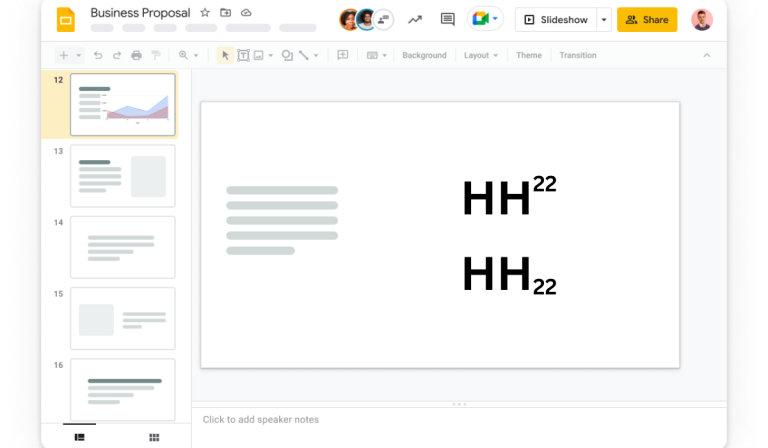
Superscript text is smaller and positioned slightly above the normal line of text. It is often used to represent mathematical exponents, such as writing “2²” to indicate “two squared.” Superscripts are also used for footnotes and endnotes and to show ordinal numbers like “1st” or “2nd.”
Subscript text, on the other hand, is smaller and positioned slightly below the normal line of text. It is commonly used in chemical formulas to indicate the number and arrangement of atoms, like “H₂O” for water. Subscripts are also used in mathematical formulas and equations, such as writing “CO₂” for carbon dioxide.
These formatting styles help convey specific information in a concise and visually distinct manner. They can be found in various contexts, including scientific papers, mathematical equations, chemistry formulas, and even in everyday writing.
Also, Check Out: How to Delete a Page in Word | Delete a Page in Word Mac
How to Add Superscript in Google Slides?
You have a few options for adding superscript text in Google Slides:
Keyboard Shortcuts
On a PC, press Ctrl and the period sign (.) or on a Mac, press ⌘ and the period sign (.) to quickly add superscript. Just select the text and use the shortcut.
Format Menu
Another way is to use the Format menu. Select the text, go to “Format,” then choose “Text Style” and “Superscript.”
Right-Click Menu
The right-click menu also offers a way to add superscripts. Select the text, right-click, and choose “Format text” and “Superscript.”
To remove superscript formatting, select the text and use the same method to deselect the superscript option.
You can further customize the superscript formatting by adjusting the font size and vertical position. Select the superscript text, go to “Format,” choose “Text Style,” and adjust the font size and position as desired.
By using these methods and tips, you can effectively incorporate superscripts into your Google Slides presentations, making them visually appealing and easy to read.
How to Add Subscript in Google Slides?
To add subscripts in Google Slides, you have multiple options at your disposal. Firstly, you can utilize keyboard shortcuts for a quick and efficient method. On a PC, press Ctrl + (comma), and on a Mac, press ⌘ + (comma). Highlight the desired text and apply the shortcut to instantly convert it into a subscript.
Alternatively, you can employ the Format menu. Select the text you wish to subscript, navigate to the “Format” menu, choose “Text Style,” and finally, select “Subscript.”
Furthermore, you can make use of the right-click menu. Highlight the desired text, right-click, select “Format text,” and then opt for “Subscript.”
These various approaches grant you the flexibility to add subscripts effortlessly in your Google Slides presentations.
Benefits of using Superscript and Subscript in your Google Slides
Following are the benefits of using superscript and subscript in your Google Slides presentations.
Improved Visual Presentation
Using superscript and subscript text in your slides can greatly improve the visual presentation of your content. Superscript is used to raise text above the baseline, while subscript is used to lower text below the baseline. By applying these formatting options, you can effectively highlight important information such as footnotes, references, chemical formulas, mathematical equations, and more. This helps in creating a visually appealing and well-structured presentation.
Enhanced Readability
Superscript and subscript text also contribute to enhanced readability in your Google Slides. By reducing the size of certain text elements, such as footnotes or annotations, you can maintain the focus on the main content without cluttering the slide. This allows your audience to easily understand and follow along with the information being presented.
Clear Communication of Data
Superscript and subscript text are particularly useful when dealing with numerical data, units, and measurements. You can use superscripts to represent exponents, such as square or cubic units, or to indicate degrees in temperature or angles. Subscript, on the other hand, can be utilized to denote chemical formulas or molecular structures. By employing these formatting options, you can effectively communicate complex data in a clear and concise manner.
Professional and Polished Look
Using superscript and subscript text can add a touch of professionalism and polish to your Google Slides presentations. When you present information in a well-organized and visually appealing manner, it creates a positive impression on your audience. By utilizing superscripts and subscripts appropriately, you demonstrate attention to detail and a commitment to delivering high-quality content.
Conclusion
In conclusion, Google Slides offers powerful features for incorporating superscript and subscript text, making it an invaluable tool for creating visually appealing and impactful presentations. By learning how to effectively use these formatting options, users can enhance the visual presentation, readability, and communication of their content.
Whether you’re a student, professional, or anyone looking to create captivating slides, understanding how to add and customize superscripts and subscripts in Google Slides is essential. By leveraging the benefits of these formatting styles, such as improved visual presentation, enhanced readability, clear communication of data, and a professional look, you can elevate the overall quality and impact of your presentations, effectively conveying your message to your audience.