

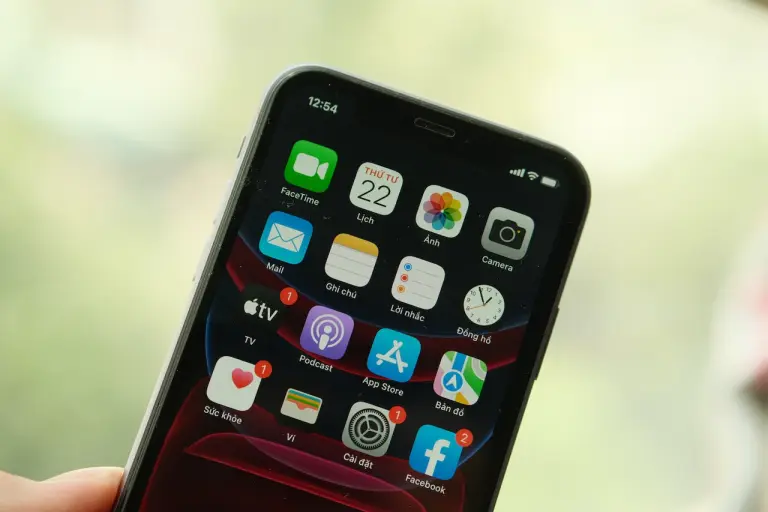
View Your App Download History on your iPhone: Key Takeaways
Accessing your app download history on your iPhone allows you to keep track of all the apps you have downloaded and helps you reinstall previously deleted apps. Here you will get to know about View Your App Download History on your iPhone:
- Checking your app download history saves time and prevents accidental duplicate purchases by verifying if you have already purchased an app.
- Viewing your app download history assists in tracking your app usage and making informed decisions about which apps to retain or remove.
- To view your app download history, open the App Store, tap on the “Updates” tab, select “Purchased,” and then choose “Not on this iPhone” to see a list of apps you have obtained but are not currently installed.
- Each app in your app download history shows its name, date of purchase or download, and price (if applicable), and you can tap on an app to access its description, ratings, and reviews.

A Comprehensive Guide to Tracking and Reinstalling Apps
If you are an iPhone user, you may have downloaded numerous apps over time, and it’s possible that you have forgotten about some of them. With the App Store continuously updating and introducing new apps on a daily basis, it’s easy to lose track of the apps you have downloaded. However, there’s no need to worry because you can easily access your app download history on your iPhone, allowing you to stay informed about all the apps you have added to your device.
This article provides a step-by-step guide on how to view your app download history on your iPhone, enabling you to keep track of all the apps you have ever downloaded. Whether you want to reinstall a previously deleted app or simply wish to maintain a record of all the apps you have installed, this comprehensive guide will assist you in achieving your goal.
Related: What are The Ways to fix Alexa Error Code 701? 2024
How to View Your App Download History on Your iPhone?
Access your iPhone’s app download history and stay informed about acquired or free apps by following these instructions.
Moreover, it serves as a valuable resource when you need to verify if you have previously purchased an app. By having a clear overview of your app download history, you can save time and prevent accidental duplicate purchases.
Furthermore, it proves beneficial for tracking your app usage and making informed decisions about which apps to retain and which ones to remove.
To view your app download history on your iPhone, please follow the steps outlined below.
Step 1: Open the App Store.
To access the record of apps you have downloaded on your iPhone, you should start by launching the App Store. Here are the steps to follow:
- Locate the “App Store” icon on your iPhone’s home screen. This icon typically appears as a blue square with a white letter “A.”
- Tap on the “App Store” icon to open it. Once launched, you will see a range of apps and options, such as “Today,” “Games,” and “Apps.”
Step 2: Tap on the “Updates” tab
After accessing the App Store, proceed by selecting the “Updates” tab. Follow these steps:
- Find the bottom navigation bar within the App Store.
- Tap on the “Updates” tab, typically depicted by a circular icon featuring an upward arrow.
- The “Updates” tab will present a list of available updates for the applications currently installed on your iPhone.
Step 3: Tap on “Purchased”
To access your iPhone’s app download history, simply follow these steps:
- Navigate to the “Updates” tab within your app.
- Locate the section labeled “Purchased“.
- Tap on the “Purchased” option, typically found at the top of the “Updates” tab.
- A new screen will display a comprehensive list of purchased or free apps from the App Store.
Step 4: Select “Not on this iPhone”
- When you’re in the “Purchased” section, locate the option labeled “Not on this iPhone“.
- Select the “Not on this iPhone” option, typically found at the top of the screen, to access a list of apps you have purchased or downloaded for free from the App Store but are not currently installed on your iPhone.
- You will be directed to a new screen showing a comprehensive list of all the apps you have obtained from the App Store, either through purchase or as free downloads, that are currently not installed on your iPhone.
Step 5: View Your App Download History
To access the record of apps you have downloaded on your iPhone, follow these steps:
- Navigate to the “Not on this iPhone” section, which contains a list of apps.
- Browse through the apps listed in the “Not on this iPhone” section.
- Each app in the list will show its name, date of purchase or download, and price (if applicable).
- If you want more details about a specific app, simply tap on it. This action will direct you to the app’s page in the App Store, where you can find its description, ratings, and reviews.
- Alternatively, you can utilize the search bar located at the top of the screen to look for particular apps within your app download history.
Access your iPhone’s app download history and stay informed about acquired or free apps with these steps.
Conclusion – View Your App Download History on your iPhone
In conclusion, keeping track of your app download history on your iPhone is essential for various reasons. Monitor usage, reinstall deleted apps, avoid duplicates, and decide which apps to keep or remove. The step-by-step guide provided in this article simplifies the process of accessing your app download history.
Follow the steps to access the “Purchased” section in the App Store and explore your obtained app list effortlessly. Stay organized and informed about your app history with this guide, whether searching for a specific app or reviewing past downloads.